Apparently iTunes keeps its playlist
information in one XML file (<home>/Music/iTunes/Itunes
Music Library.xml). This file is updated every time you use
iTunes. As I found out, it can get corrupted and you lose your
playlists. I have not found an easy way to recover them. What is
worse, if you connect your iPod, it will probably automatically
"update" with the corrupted list and you will lose all the songs
on your iPod.
DO NOT
CONNECT YOUR iPOD IF THE iTUNES PLAYLIST IS CORRUPTED.
Frustratingly, all of your songs should still be in the Music
folder, all neatly arranged by artist and album. iTunes does have
the capability of "importing" all of these songs, including artist
and album information but it seems you have to trick it into
thinking it is the first time you are using iTunes. Here are the
steps (might not apply to the latest iTunes!):
- Rename Itunes Music Library.xml (eg Itunes Music
Library.xml2)
- Rename
<home>/Library/Preferences/com.apple.iTunes.plist
(this is iTunes preferences file - not playlist)
- Start iTunes and follow the new user prompts.
- Choose to search your hard disk and add tunes to your
library - this takes several minutes
- From the iTunes menu choose Edit / Show Browser
- The browser window shows album and artist information
- From the browser window, drag each album to the blank space
under the playlists column - this creates a playlist of each
album.
You will have to manually recreate custom playlists. It is
possible that you will be able to skip steps2 and 3 and your music
might still appear in your library and browser for steps 5 to 7.
You can try keeping a backup copy of the XML file but there is a
chance it will not work due to changes to the folders.
Apple
advice
on backing up iTunes music.
Another way is to use
iPodrip
to copy songs from the iPod back to iTunes [no longer seems to
work with Leopard!]
You can really confuse an iPod user by turning Music "off".
Just go to Settings, select Main Menu then turn Music "Off".
"Music" disappears from the main menu! Check this setting before
assuming your iPod has become corrupted (it happended accidentally
to me!). You can add or delete other Main Menu items using
this process.
If your internet connection is off and iTunes is taking ages to
load go to iTunes Preferences / General and uncheck "Automatically
check for iTunes Updates".
Contacts list.
iSync [2005] works "seamlessly" with the iPod BUT it sends all the
contacts in your OS X Address Book. If you only want to send
contacts from a particular group then follow these steps:
- Open Address Book
- Select (or create) the group that you want to transfer to
the iPod
- Ctrl Click to display the item menu
- Select Export to vCards
- Fill out the save file form (give it a name such as
ipod.vcf)
- Close Address Book
- Open the iPod in Finder (it should appear on the Desktop
when you plug it in)
- Open the Contacts folder
- Drag/copy your newly created file to that folder
- If necessary, delete/trash the iSync.vcf file from the iPod
folder (Note that the iPod does not work with groups. If there
are any other vcf files in the folder then it simply combines
them all into one long list. That list is limited to 1000
contacts.)
Hopefully Apple will automate these steps in the next update to
iSync!
While on Address Book - the latest version has a very annoying
auto-fill feature when you add a new card. It tries to guess the
field data from other cards, which is not much use for a new card.
To
turn
it off your have to start MAIL and change its preferences
(Address Book preferences don't list the feature)!
Data storage
Data files can be easily stored on your iPod using Finder. Open
the iPod icon in Finder. Create new folders in which to save your
data. Drag/copy the data folders from your hard disk to the iPod.
See Apple's
How
to use your iPod as a hard disk for storing files for more
(I found the iPod and OS X (10.3) were automatically set up to do
this). You cannot manage audio files in this way - you must use
iTunes.
You might want to secure your data, since the iPod is so
"portable". For example, see
Podlock.
Using an iPod with multiple Macs.
You can play music and videos via iTunes directly from an iPod, if
it is set to "manually manage music and videos". This checkbox is
on the Summary tab in iTunes when the iPod is connected. If this
item is unchecked then all music and video content on the iPod
will be grayed out (ie cannot be played). Unfortunately, the
setting is saved on the iPod and when you plug it into the main
Mac (that is used to manage music and videos on the iPod) it will
also be ste to manual. You will neded to uncheck the item to
manage the music and videos (and check it again if you wish to
play the items on the second Mac).
iPod USB driver
for Windows 98 (includes Shuffle) - XP will see the iPod as
a memory stick but Win98 needs drivers.
Portable
hi-fi
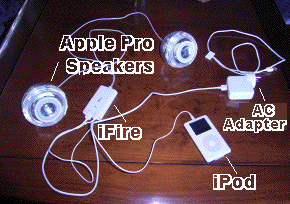
The Griffin
iFire
gets its power from any Firewire port and sends high-quality audio
to
Apple
Pro
Speakers. Audio input is any headphone socket. The iPod AC
adapter has a Firewire port for connection to the iPod. This port
can be used to power the iFire instead. You can therefore set up a
portable hi-fi system using an iPod, iFire and Apple Pro speakers,
as shown in the picture.
Add a
Griffin
ProSpeaker
Breakout Cable (possibly a discontinued line) and you can
use any unamplified speakers with your iFire,
including car speakers.
After being disappointed with an FM transmitter (see below) for
use in the car I decided to do just that, using a
Griffin Powerpod to power the iFire instead of the iPod. I
now have a pair of mono headphone sockets in the glovebox that
disconnect
the radio and connect the iFire to each of the speakers
in the car door. The sound quality is excellent. Note that you
need to keep the left and right speaker cables totally independent
so cannot use a stereo socket with common earth.
Other ways to send iPod music to your car's hi-fi using an FM
transmitter such as:
New for 2007:
LaCie
Firewire Speakers. Oct 08: Unfortunately the new Macbook
does
not
have a Firewire port!
iPod
links:
iPhone 3G
Tips
- To turn off the annoying, Microsoft-inspired
auto-correction of words as you type:
- Go to Settings / General / Keyboard
- Then turn the auto correction to off
- To control your iMac iTunes from your iPhone using Wifi -
try the Remote
App
from Apple.
- How to create
custom ringtones in GarageBand 4.1.1 - any clip of
music up to 40s can be converted and sent to iTunes
- Print from an iPhone - New Print
App BUT it has its own web browser - you cannot print
from Safari Mobile.
- To control a Keynote presentation from your iPhone try
Apple's Keynote
Remote but make sure the firewall (System-Prefs
/Security/Firewall) allows Keynote to connect. Also, it
could take over a minute for the connection to be
established once you enter the passcode on the Mac.jfControl
is an alternative which covers more applications but has
less control.
- Google Mobile voice search error message: "Voice
Search not available. Check network or try again" - Try
Settings app -> General -> Reset -> Reset Network
Settings (thanks "Fofer")
- Search Garageband Help for tips on creating custom
ringtones. If your ringtone is only a few seconds long you
will need to copy and paste it several times to get the
total length up to about 17 seconds before
choosing Share/iTunes as ringtone. When the iPhone is
connected to iTunes select the new ringtone on the Ringtone
tab page. Finally, on the iPhone, go to Settings/Sounds and
select your new ringtone as the default.
- Telstra (Australia): How
do I unlock my Apple iPhone to use on other networks?
There is no fee to unlock your Apple iPhone from Telstra...
Tethering to the iPhone
26 Jul 09 Benm.at: Activate
tethering without jailbreaking - risky as it changes your
iPhone configuration and your carrier might charge you for the
privilege.
25 Jul 09 iClarified: How
to Jailbreak Your iPhone 3G (or 3) on OS 3.0 Using RedSn0w
- risky!
10 Jun 09: iPhone OS 3.0 will allow tethering - but carriers
will likely charge you for it
There is a long-running Apple
Discussion about "tethering" your laptop to the iPhone 3G
to obtain internet access. There are good
tips
on doing this at Wired. A problem is that this depends on
the availability of an iPhone App called Netshare. Apparently it
appeared briefly on the Apple iTunes Store App list and a few
thousand americans downloaded it. Unfortunately the exclusive
ATT deal in the USA meant that tethering was not permitted and
the App was withdrawn (with no explanation from Apple or ATT).
Worse still, it seems that the Netshare.App
is
being automatically deleted from iPhones during regular
updates. Update: it seems the person who reported this had
a
computer glitch but the capability for Apple to "nuke"
apps may be there.
There might be reasons for not making Netshare.app
available via the US iTunes Store but this is not the case with
other countries like Australia where there are several iPhone
service providers. Here Optusnet hasiPhone
plans that include a data allowance (and more "data" can
be purchased). It does not seem to matter whether the data
allowance is used up from the iPhone or a tethered
computer. Trouble is that Optusnet has no current support for
tethering. There is a hack
("jailbreaking") that can be used to allow apps to run on the
iPhone which are not "approved" by Apple (ie not downloadable
from the iTunes Store) and these include apps that can
facilitate tethering . However I would not recommend this
approach as it could wreck your iPhone and, even if it works, it
could be undone by the next iPhone software upgrade. ARS
Technica: Jailbreaking
and
unlocking an iPhone: What you need to know (read the
comments) + QuickPwn
with the latest downloads and tips
Does
iPhone
appear frozen or stuck? To reset iPhone, press and hold
the Sleep/Wake button and the Home button at the same time for
at least 10 seconds. During this time, a red "power off" slider
may appear and the screen may go black, but do not release
Sleep/Wake and Home buttons until the Apple logo appears.
It seems the best way forward it to resist the temptation to
buy the iPhone and make it clear to the retailers that you
are waiting for tethering to be supported.
PDAnet is now
available for the iPhone but it requires jailbreaking (not
recommended)
Netatalk
lets
you transfer files between iPhone and your Mac wirelessly
(also requires jailbreaking)
VOIP
Watch the iTunes Store Apps for voice-over-internet-protocol
applications that will allow you to make phone calls when
connected to the internet via wi-fi. So far onlyTruphone
is available (see reviewers comments). Hopefully Skype will have
an app there soon! Update June 09: Skype is now in the iTunes
App store BUT it will only work when the iPhone is connected to
the internet via wifi. It will not work via 3G (where it would
compete with the carrier's charged calls)
iSight
I just read the Apple Pro Tip about adding tasks to your login
(start-up) items. It gave me the idea of automatically taking a
snapshot of the user when logging in. A little searching came up
with an application called
iSightCapture
at ScriptBuilders:
and some
tips
by
"Neoporcupine"
The steps are:
1) Create a SNAPME folder in Applications and add the
iSightCapture executible to it
2) Create a LOGIN_PICS folder in <Home>/Pictures
3) Start Script Editor and paste the following code
tell application "Terminal"
do shell script
"/Applications/snapme/isightcapture
${HOME}/Pictures/login_pics/snap.`date '+%y%m%d.%H%M%S'`.jpg"
delay 4
close the front window
end tell
4) Save it as a runtime script application SNAPME.APP in the
APPLICATIONS/SNAPME folder
5) Test it (run the script then look in the LOGIN_PICS folder for
the snapshot - the filename is cleverly date and time stamped)
6) Add the script to your logon items (System Preferences -
Accounts)